Full tutorial: 21 public lymphoma WSIs at 10%
This tutorial downloads the complete 21-slide public lymphoma collection from Zenodo, validates every MDS file, converts L0 and L2, inspects the exact roster, runs HistoPLUS on a deterministic 10% of detected tissue tiles from each slide, and verifies the per-slide and cohort outputs.
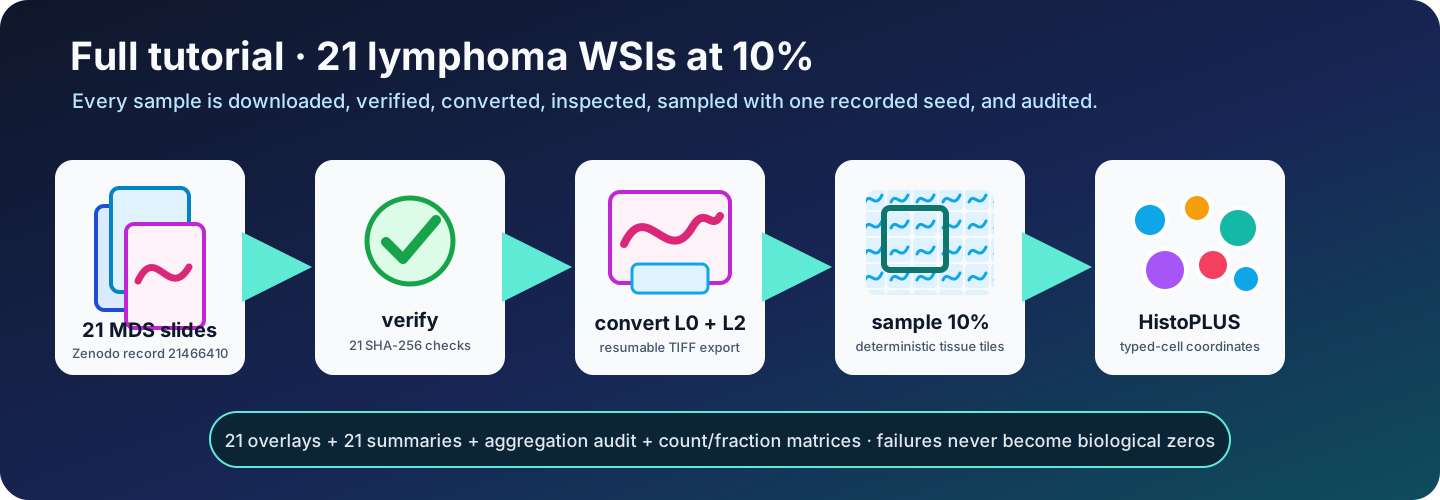
Dataset and resource scope
| Item | Value |
|---|---|
| Zenodo record | 21466410 |
| Dataset DOI | 10.5281/zenodo.21466410 |
| Public MDS files | 21 |
| Compressed download | 17370771968 bytes, about 16.2 GiB |
| Source MPP | 0.261780 µm/pixel |
| Converted levels | L0 and L2 |
| Analysis preset | fast |
| Tissue sampling | Seeded 10% per slide |
L0/L2 conversion can approach 142 GB. Open a terminal in a mounted storage directory with at least 300 GB free before cloning the repository. All commands below then use simple paths inside tumorquantai.
Complete QuickStart Example 1 first.
1. Clone and install once
# Clone TumorQuantAI and enter the repository.
git clone https://github.com/cfarkas/tumorquantai.git
cd tumorquantai

# Install the command for Docker; choose another installer only when needed.
./tumorquantai install --docker
export PATH="$HOME/.local/bin:$PATH"
tumorquantai --version
The installer already includes the download, conversion, and inspection dependencies. Do not create another tutorial virtual environment.
2. Create the tutorial folders
# Create the fixed relative folder used by the complete tutorial.
mkdir -p tutorial-data/lymphoma-21/download
3. Download the manifest
# Download or resume the public dataset manifest.
wget --continue \
  --output-document tutorial-data/lymphoma-21/download/tumorquantai_lymphoma_mds_manifest.csv \
  "https://zenodo.org/records/21466410/files/tumorquantai_lymphoma_mds_manifest.csv?download=1"

# Verify the published manifest MD5.
echo "ad9a9472e8beb302f8b9ba2b3359bacc  tutorial-data/lymphoma-21/download/tumorquantai_lymphoma_mds_manifest.csv" \
  | md5sum -c -
4. Download all 21 public MDS files
# Download or resume all 21 public MDS files.
while IFS= read -r url; do
  filename="${url##*/}"
  filename="${filename%%\?*}"
  wget --continue \
    --output-document "tutorial-data/lymphoma-21/download/$filename" \
    "$url"
done < examples/lymphoma/zenodo_all_21.urls.txt
Use this equivalent loop when only curl is available:
# Download or resume all 21 public MDS files with curl.
while IFS= read -r url; do
  filename="${url##*/}"
  filename="${filename%%\?*}"
  curl --fail --location --retry 5 --continue-at - \
    --output "tutorial-data/lymphoma-21/download/$filename" \
    "$url"
done < examples/lymphoma/zenodo_all_21.urls.txt
5. Verify all downloads
# Verify all 21 slide checksums from inside the download directory.
(
  cd tutorial-data/lymphoma-21/download
  sha256sum -c ../../../examples/lymphoma/checksums_all_21.sha256
)

# Confirm that exactly 21 public MDS files are present.
test "$(find tutorial-data/lymphoma-21/download -maxdepth 1 -type f \
  -name 'TumorQuantAI_LymphomaWSI_*.mds' | wc -l)" -eq 21
sha256sum must print OK 21 times. Stop if any file fails.
6. Convert L0 and L2 with the installed command
# Convert all verified MDS files to resumable L0 and L2 TIFF files.
tumorquantai convert tutorial-data/lymphoma-21/download \
  --manifest tutorial-data/lymphoma-21/download/tumorquantai_lymphoma_mds_manifest.csv \
  --output tutorial-data/lymphoma-21/slides \
  --levels 0 2 \
  --expected-count 21 \
  --source-mpp 0.261780 \
  --resume
Repeat the same command to resume an interrupted conversion.
7. Inspect the 21-slide roster
# Inspect all converted L0/L2 pairs without inference.
tumorquantai inspect tutorial-data/lymphoma-21/slides \
  --sample-sheet tutorial-data/lymphoma-21/slides/samples.csv \
  --output tutorial-data/lymphoma-21/inspection
Open tutorial-data/lymphoma-21/inspection/INSPECTION.html and confirm 21 primary L0 slides, 21 L2 companions, and source MPP 0.261780.
8. Configure HistoPLUS access
Follow Configure HistoPLUS access, then check readiness:
# Check the installed route, model credential, input, and output location.
tumorquantai doctor \
  --input tutorial-data/lymphoma-21/slides \
  --output tutorial-data/lymphoma-21/results-10-percent \
  --online
9. Run all 21 slides at 10%
The backend selected during tumorquantai install is used automatically.
# Run all 21 slides at a deterministic 10% with the installed backend.
tumorquantai run tutorial-data/lymphoma-21/slides \
  --sample-sheet tutorial-data/lymphoma-21/slides/samples.csv \
  --output tutorial-data/lymphoma-21/results-10-percent \
  --preset fast \
  --source-mpp 0.261780 \
  --gpu
Use --cpu when no supported GPU is available. Conda is CPU-only:
# Run the same 10% analysis through Conda on CPU.
tumorquantai run tutorial-data/lymphoma-21/slides \
  --sample-sheet tutorial-data/lymphoma-21/slides/samples.csv \
  --output tutorial-data/lymphoma-21/results-10-percent-conda \
  --preset fast \
  --source-mpp 0.261780 \
  --conda \
  --cpu
10. Monitor and resume
# Summarize completed, failed, incomplete, and pending slides.
tumorquantai status tutorial-data/lymphoma-21/results-10-percent
Press Ctrl+C to stop. Repeat the identical run command to reuse valid Nextflow tasks.
11. Verify the outputs
# Verify the exact 21-slide 10% result set.
python3 examples/lymphoma/verify_fast21_outputs.py \
  --output tutorial-data/lymphoma-21/results-10-percent
A successful verifier ends with:
SUCCESS: 21-slide TumorQuantAI 10% tutorial outputs are complete.
12. Review the results
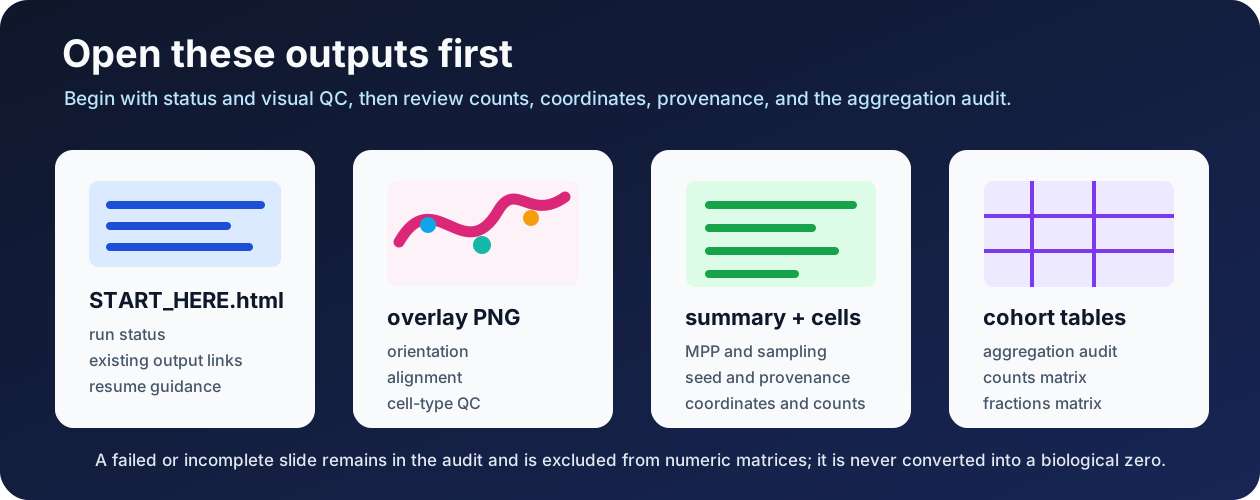
Review:
tutorial-data/lymphoma-21/results-10-percent/START_HERE.html- all 21
overlays/celltypes_overview_and_zoom.pngfiles - all 21
summary/summary.jsonfiles aggregated_celltypes/sample_aggregation_audit.csvaggregated_celltypes/celltype_counts_by_sample.csvaggregated_celltypes/celltype_fractions_by_sample.csv
Ten-percent counts describe sampled tissue tiles and must not be multiplied by ten.