Explore the browser interface
Try the same setup interface used by oncotracer --interactive, with synthetic Illumina
and ONT examples. The demo runs in your browser: configuration checks, progress
and results are simulated. Browse folders → Browse computer also opens your
computer's folder picker to preview FASTQ (.fastq, .fq, and gzipped versions),
POD5 and BAM filenames. Files are not uploaded, read for sequence data or analyzed.
You can navigate subfolders in the selected folder. If no sequencing files are
present, the picker shows No sequencing files found. Check your paths.
Local previews appear under /computer; browsers do not expose an absolute
filesystem path. Use the installed OncoTracer interface below to select these
files for analysis. The hosted demo's Use this folder applies to synthetic
folders only.
Watch the browser walkthroughs in QuickStart 1 and QuickStart 2, then try the controls yourself.
The installed app now restores saved sample assignments when you reload a running session. This read-only run summary is newer than the recorded setup walkthroughs.
What to try
- Choose Illumina or ONT, then explicitly choose Fresh or FFPE before selecting inputs. Either platform supports either preservation choice; the demo does not assign preservation from the platform.
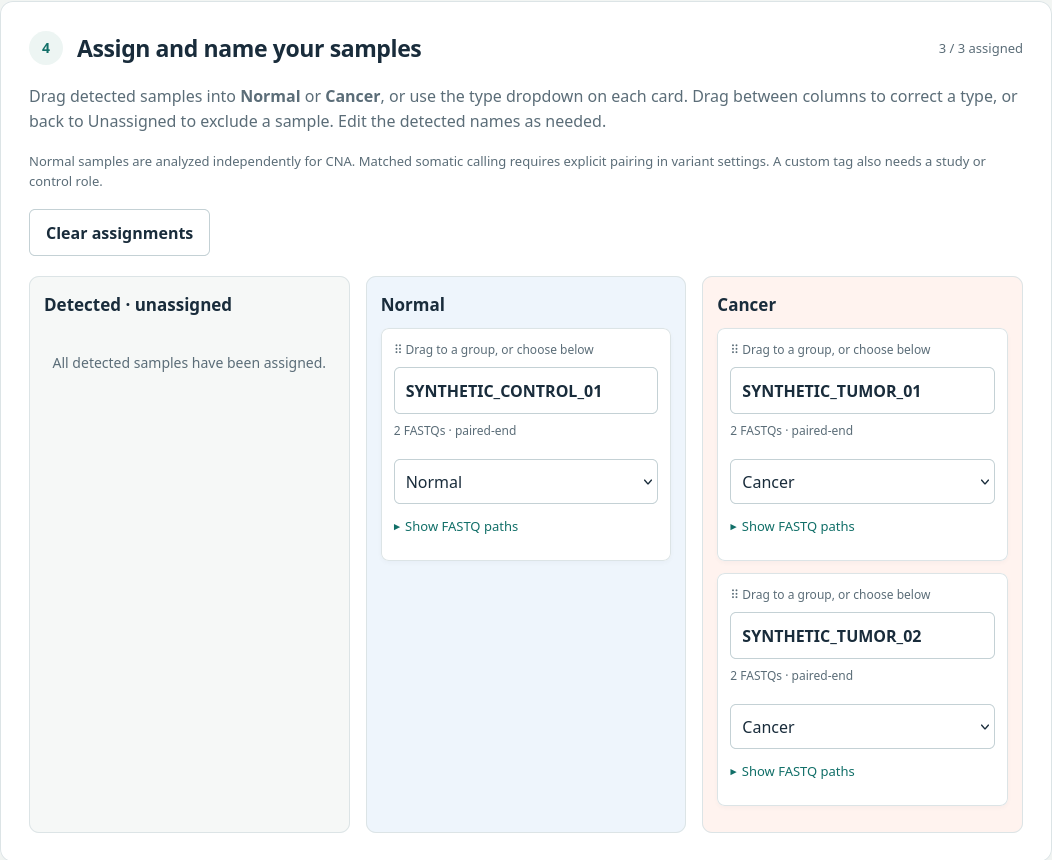
- Discover inputs: each sample has one inventory row with expandable FASTQ paths; ONT also shows POD5/BAM inputs. Assign samples to Cancer or Normal, using drag-and-drop or dropdowns. Unassigned samples are excluded.
- Choose Conda or Docker and enable small variants. Explore the callers available for the selected platform and preservation.
- Review caller tools/models, filtering and annotation. Try the readable ONT profile choices, automatic model preparation, FFPE license control and optional Varlociraptor presence filter. Open paths and try Autodetect resources or a path's Autodetect button. Resource results and installation help are synthetic; the demo downloads no models.
- Click Preview configuration to inspect an example configuration and simulated checks.
- Click Simulate Run to see simulated progress, then explore the example results. Use the demo controls to reset and try another configuration.
Start the real server
After installing OncoTracer, start a project from any directory.
If oncotracer is not on PATH and you installed it in a virtual environment,
activate that environment first:
oncotracer --interactive --backend conda --project "$PWD/my-study"
For Docker, use the image that includes the variant tools:
oncotracer --interactive --backend docker --project "$PWD/my-study" \
  --image carlosfarkas/oncotracer:terminal-progress-20261022 --variants
Terminal equivalents
Use these instead of the corresponding browser command for a new project.
Answer the terminal questions; --run validates and starts the analysis:
oncotracer setup --terminal --project "$PWD/my-study" --backend conda --run
oncotracer setup --terminal --project "$PWD/my-study" --backend docker \
  --image carlosfarkas/oncotracer:terminal-progress-20261022 --variants --run
To record the same preservation in terminal setup, add --variant-specimen-type fresh
or --variant-specimen-type ffpe according to your specimen records.
The headless guide includes fully scripted Illumina/ONT runs, remote-browser SSH commands, logs and resuming. The terminal QuickStarts provide complete runs using real downloadable examples. The synthetic demo itself produces no reads or executable analysis.
Server behavior
The real interface uses an available loopback port, preferring 127.0.0.1:8888.
Separate sessions can open separate projects. Keep each terminal open and use its
complete printed URL, including the session code after #, if the browser does
not open automatically. In the installed app, Browse computer opens the
desktop's native folder chooser directly and fills the selected absolute path.
Other Browse buttons open the system file or folder chooser as appropriate.
Cancel keeps the previous selection. A folder with no FASTQ, POD5 or BAM files,
including its subfolders, displays No sequencing files found. Check your paths.
The chooser uses the desktop on the computer running OncoTracer; remote users
can enter a server path directly. The hosted demo keeps its synthetic navigator
and browser-provided local filename preview.
Saving and checking prepares the project; Run analysis starts the
work. The setup guide explains references, resource selection,
stopping and resuming.
The demo is generated from the repository's actual setup page using
scripts/build_setup_demo.py. Its simulated results teach navigation; use the
public-data QuickStarts for an executable analysis example.